ASN Management
Add, view, and edit your Advanced Shipment Notices from this page.
Main Page
At the top right, you'll find the "Add new" button. Clicking it will bring you to a new page where you can add a new ASN into our system.
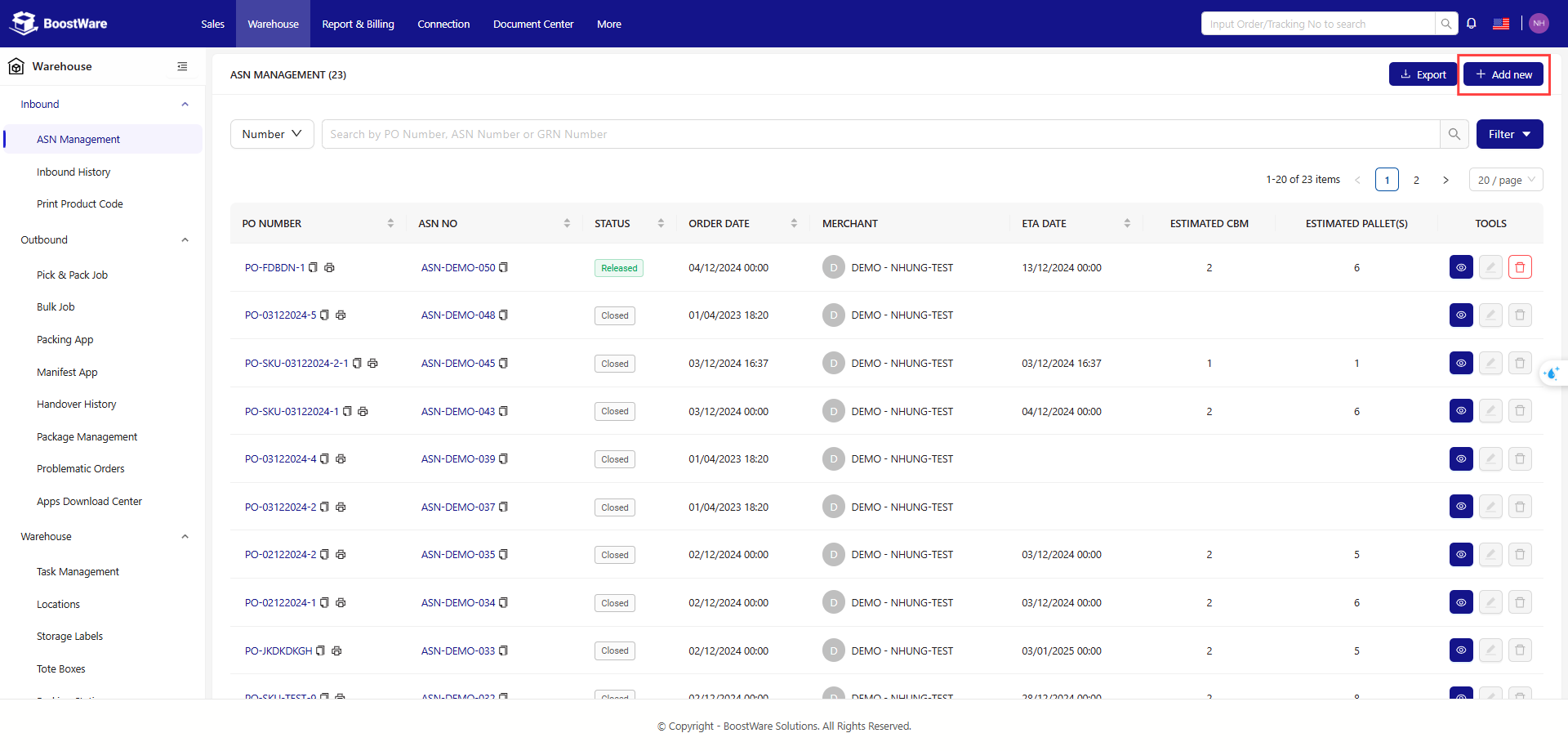
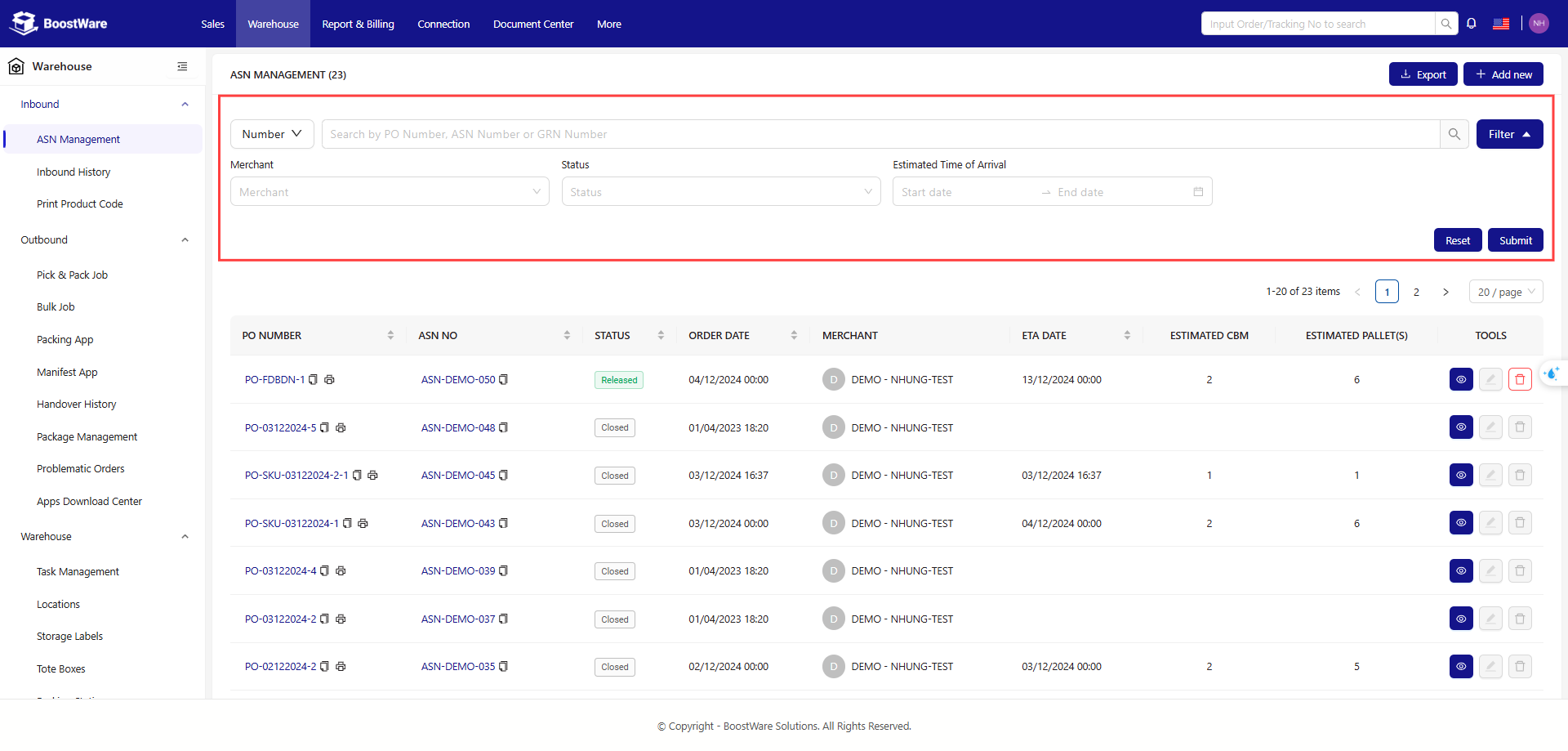
Beside the "Add new" button, there is a dropdown menu with an input field. These two are for filtering through all your ASNs to narrow your search or find an exact ASN.
Table
The table of ASNs take up the bulk of your page view.
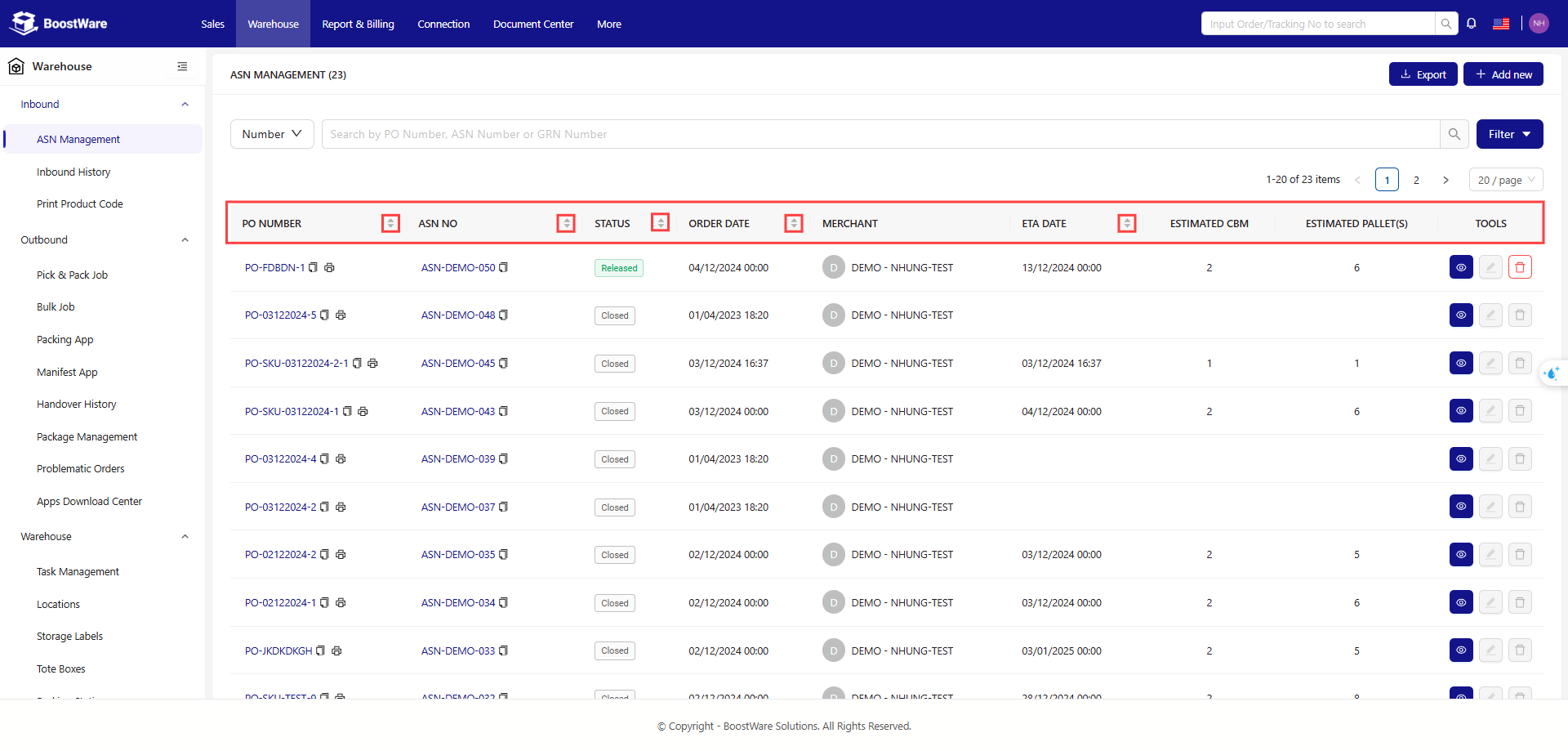
At the top are the table headings. You can click on the headings with arrows to sort the table in ascending or descending order.
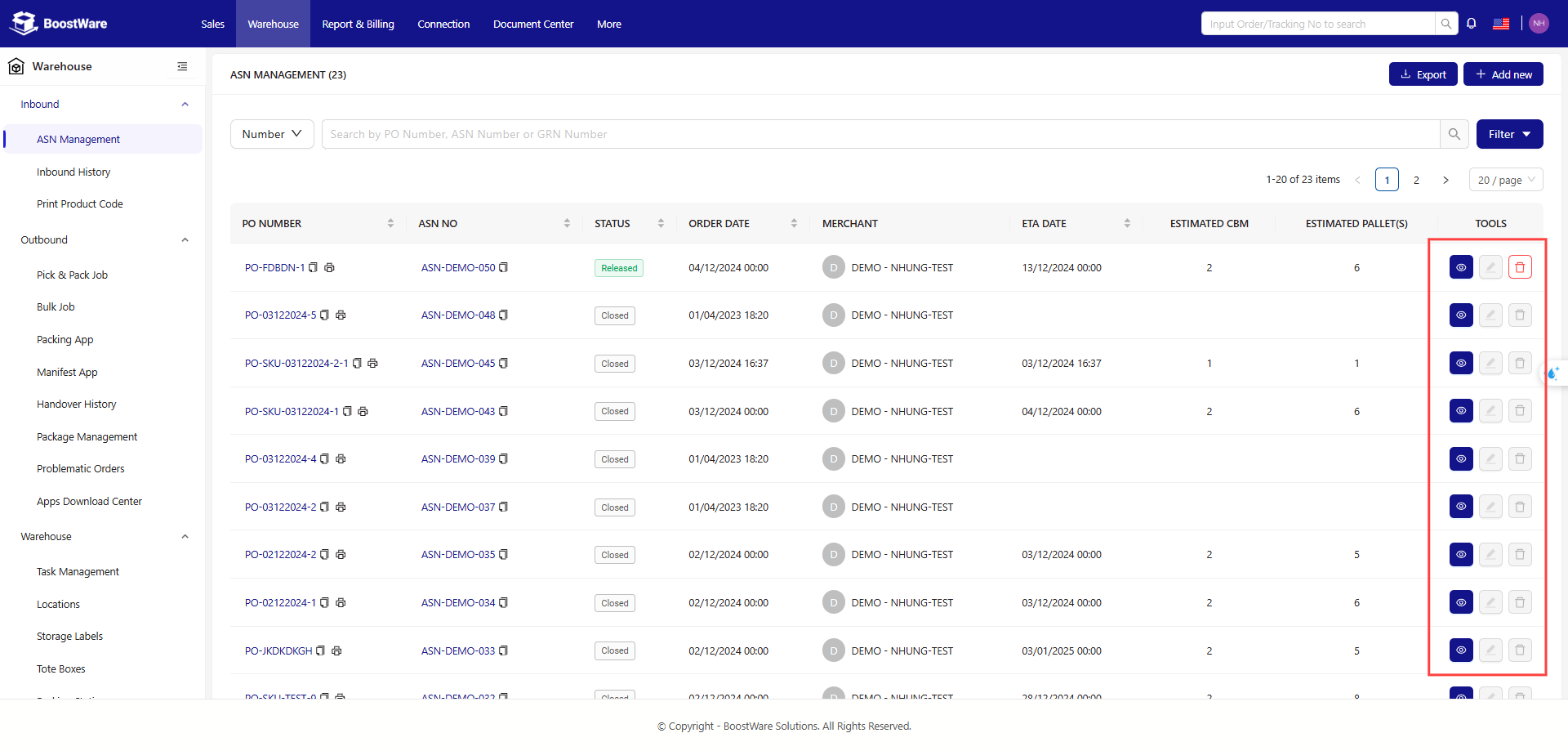
There are three different actions you can take for each ASN.
- PO Number: Print the QR code
- Tools: View, Edit, Delete
ASN Status
- New: New ASN, pending stock arrival at warehouse
- Released: Stock arrived, inbound started
- Partial Received: Partial shipment received
- Received: Full shipment received
- Closed: ASN completed and closed
- Cancelled: ASN cancelled
Add new ASN
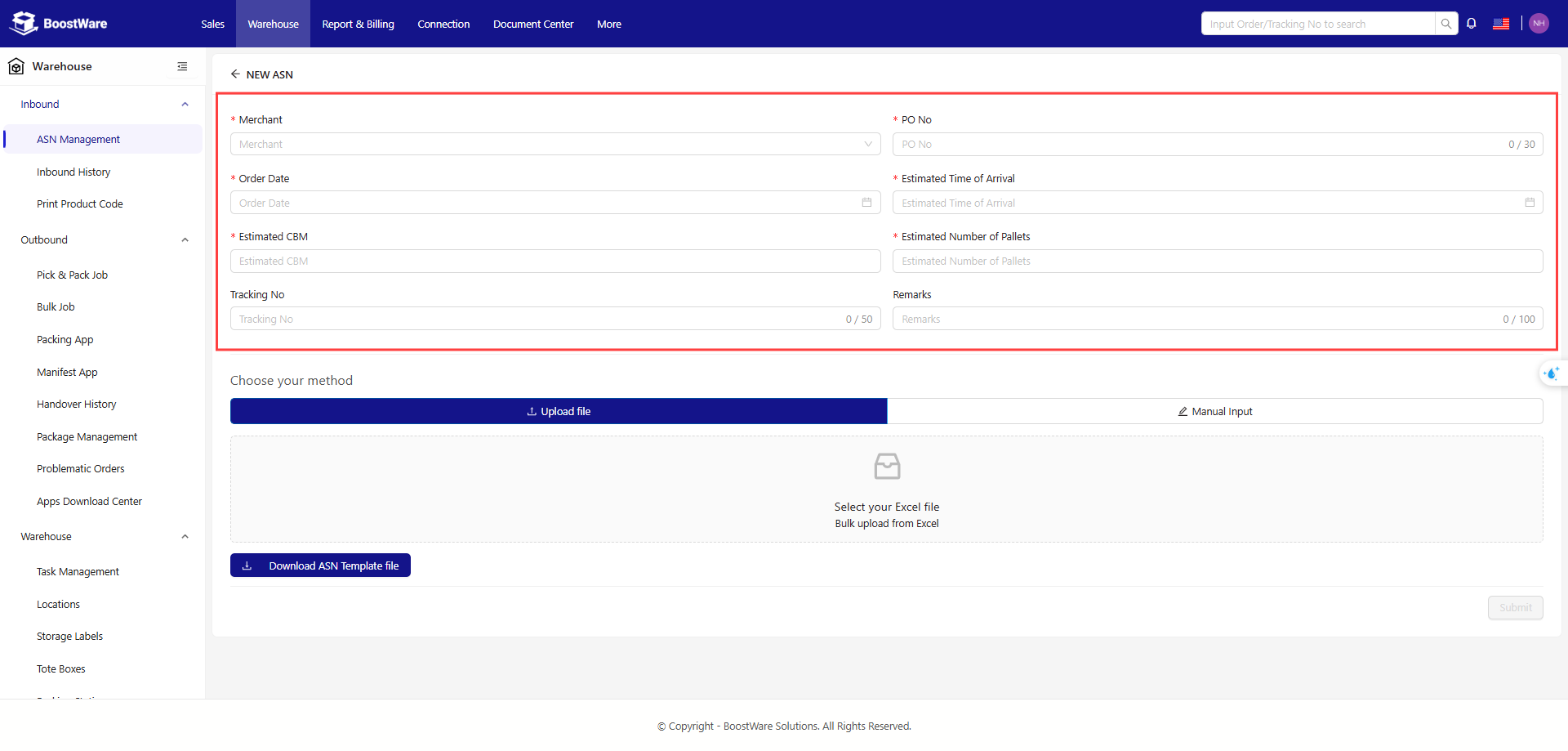
There are two halfs to this page.
- Top: required ASN details
- Bottom: SKUs with their respective quantities
Top
Fill in the fields as per the field descriptions.
Bottom
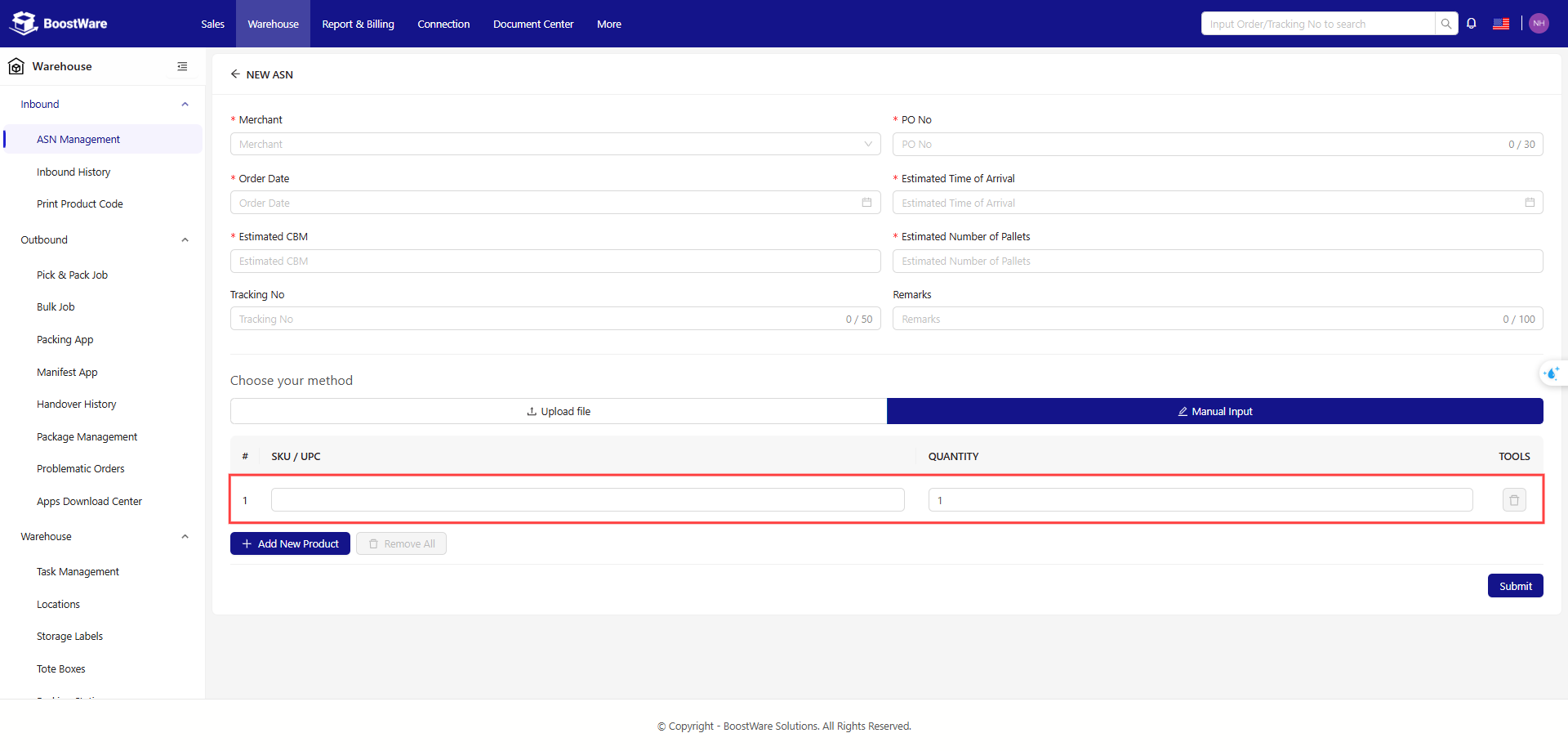
There are two ways you can add data:
- Download the ASN Template file, fill all the necessary details, then upload the file
- Individually enter the SKUs with their respective quanities
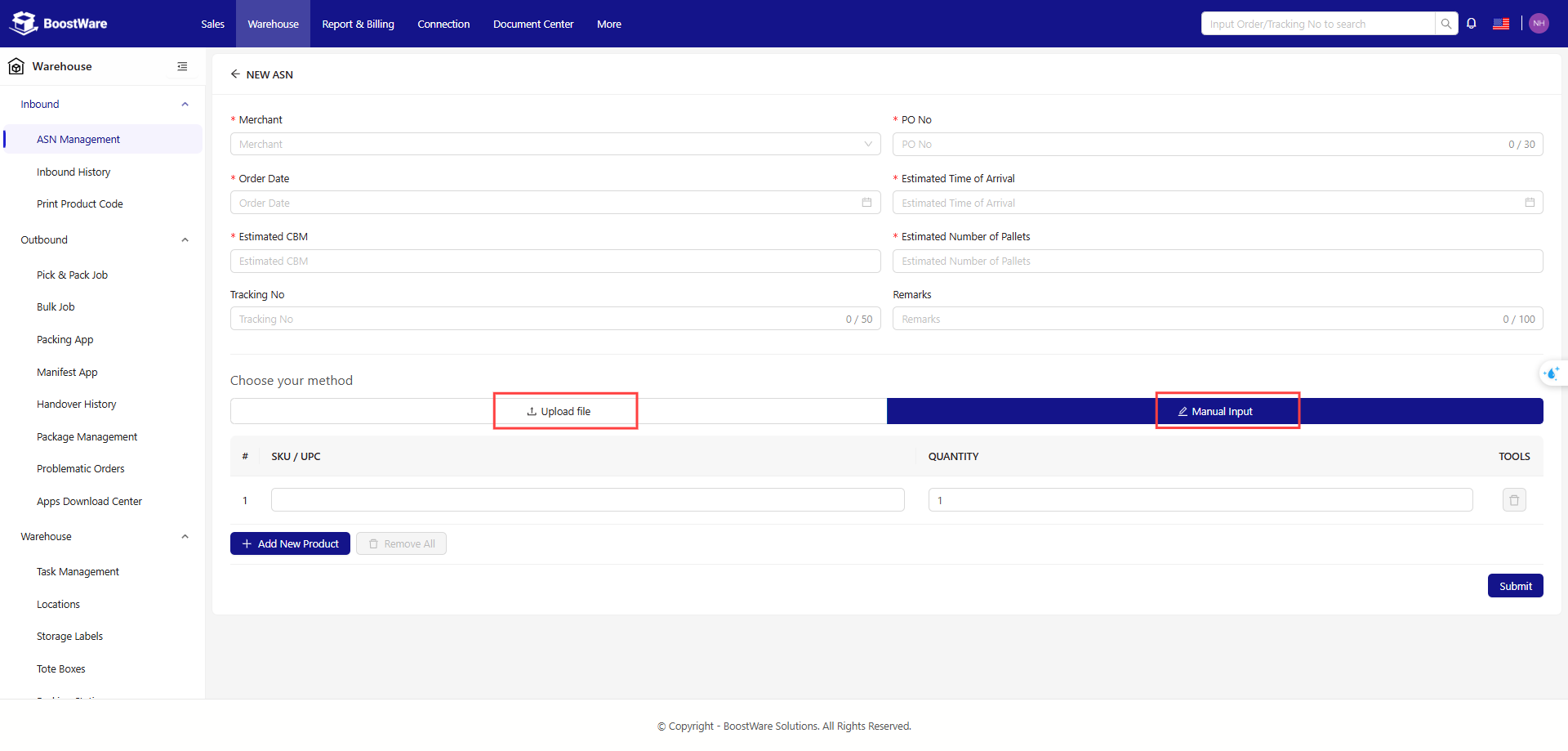
Once the details are confirmed, click submit to add the ASN into the system.
Using the template file
There are two required fields for each line in the template file:
| Column | Description |
|---|---|
| SKU | SKU of the product. This field is case-sensitive. |
| Quantity | Quantity expected to be received based on its unit of measurement. |
View ASN
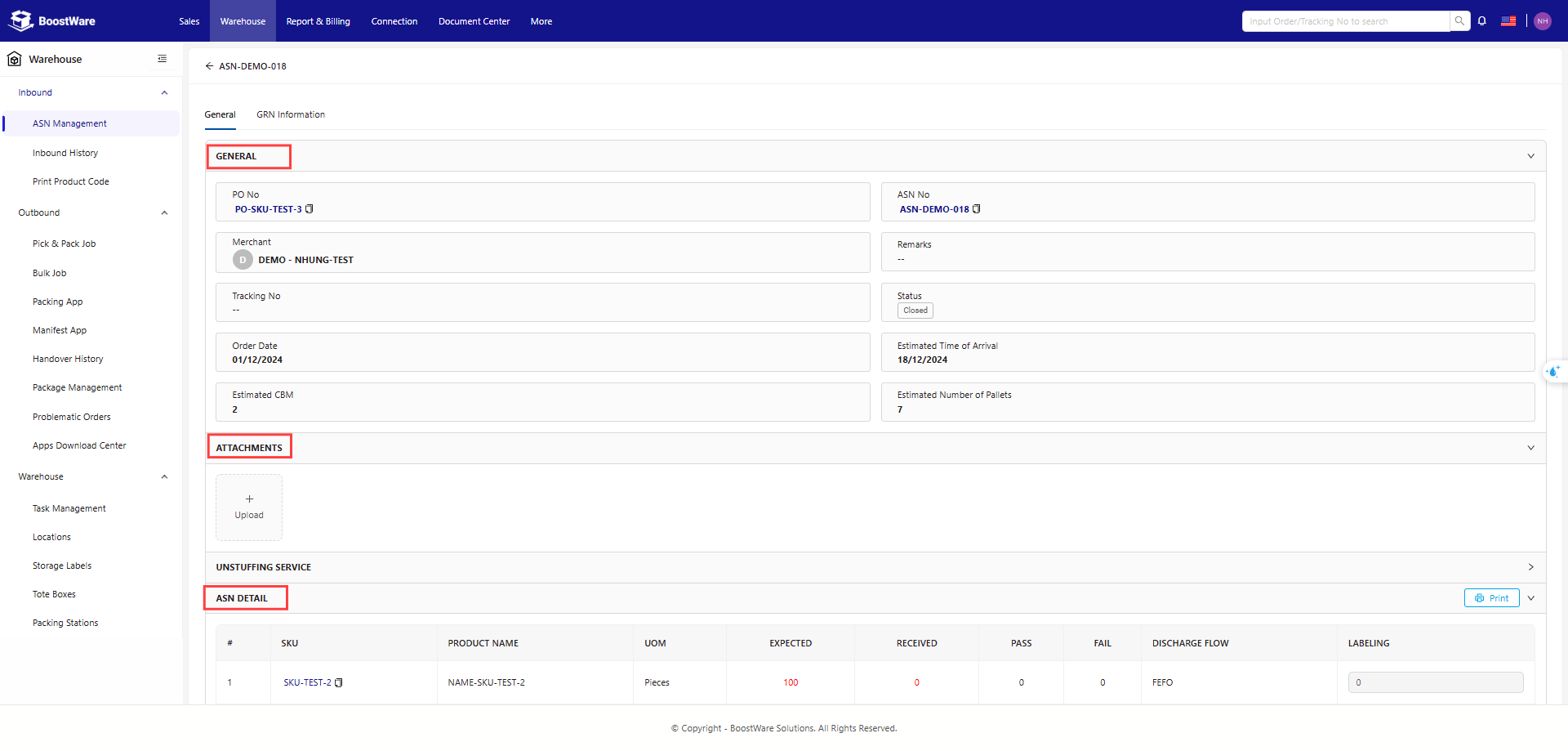
Check the details of your ASN. Here is also where you can view your GRN information.
GRN Information
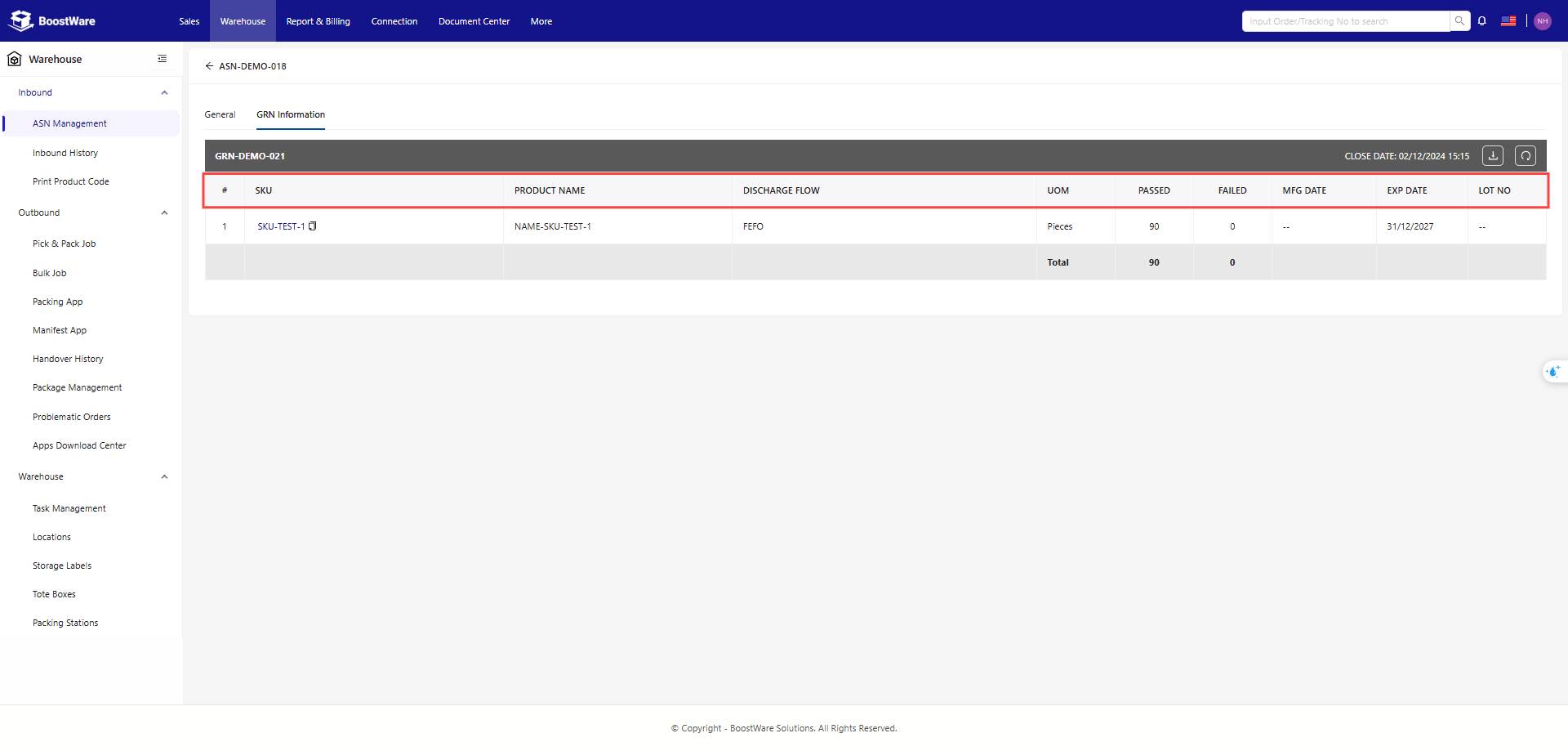
You will be able to view the GRN information once our staff have successfully received your shipment.
There may be more than one GRN for each ASN. The close date for each is the time at which we confirmed the details of the products listed in that GRN.
In the table, you can view the details of each GRN that we create.
- Passed: Quantity that is in good condition for sale.
- Failed: Quantity that we found to have issues.
The rest of the details are as per the product details provided by you.
The MFG Date and EXP Date will be filled if your product's discharge flow is FMFO and FEFO respectively.
Edit ASN
- Change the details of your ASN.
- You can add and remove products, but note that your product list cannot be empty.