Product Management
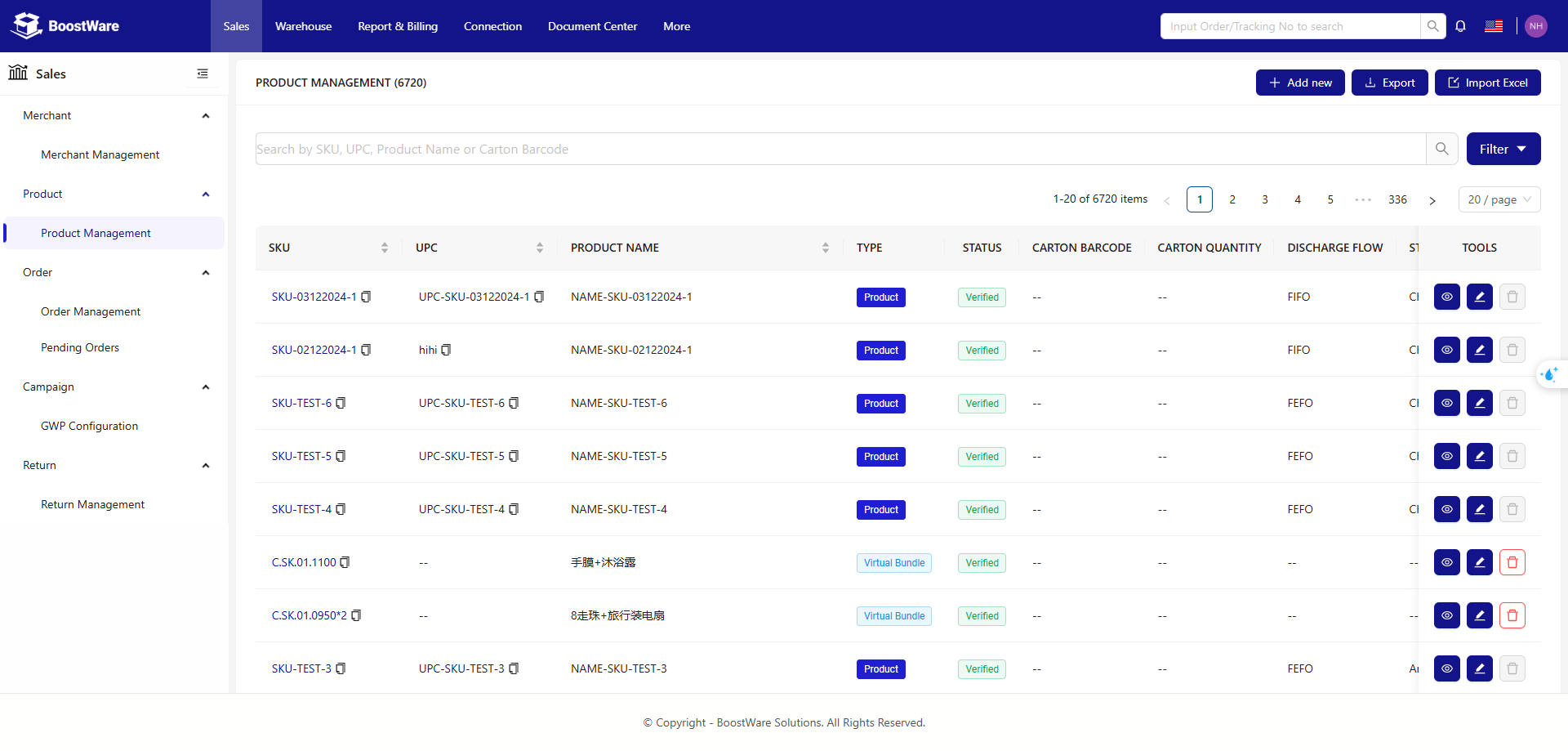
The products page allows you to manage your SKUs.
List of Buttons
| Buttons | Description |
|---|---|
.png) |
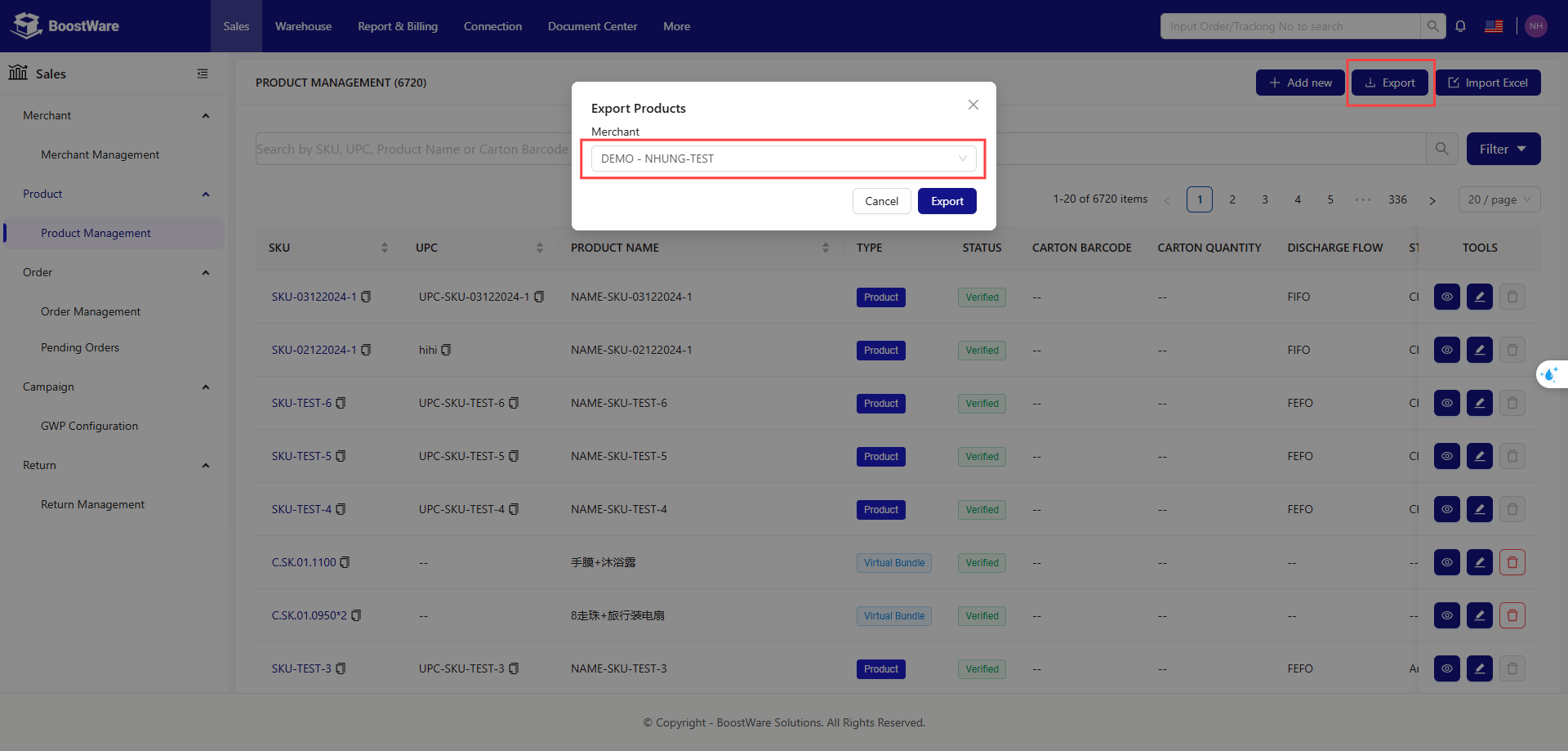
Download an excel file containing a list of products for a specific merchant. |
.png) |
Add a new product or create a virtual bundle. |
.png) |
Bulk adding new products or virtual bundles. |
Creating Products
To get started, go to the Products tab to create a new SKU. You can create a new SKU in 2 ways:
- Individual adding
- Bulk adding (requires importing and uploading an Excel file)
Individual adding
You can add a new SKU by either creating a new product or bundle existing products.
Adding a new product
Add a new product to our system by providing the details of your product.
.png)
List of Input Fields
| Fields | Required | Description |
|---|---|---|
| Merchant | Yes | Merchant assigned to the product |
| SKU | Yes | SKU of the product |
| UPC / Product Code | Yes | Identification for product |
| Product Name | Yes | Name of product |
| Description | No | Description of product |
| Weight | Yes | Weight of product (g/kg) |
| Unit of measurement (uom) | Yes | Unit of measurement of product |
| Carton Barcode | No | Barcode for the shipping carton of your products |
| Carton Quantity | No | Number of shipping cartons for your product |
| Dimensions (L x W x H) | Yes | Dimensions of your product (mm x mm x mm or cm x cm x cm) |
| Storage Type | Yes | Storage conditions of your product |
| Discharge Flow | Yes | Inventory of control method for your product |
| Specifications | No | Special requests |
| Notes | No | Additional notes |
List of Buttons
| Buttons | Description |
|---|---|
.png) |
Submit the new product and exit the page |
.png) |
Submit the new product, stay on the page, and reset the input fields |
.png) |
Submit the new product, stay on the page, and retain existing inputs |
Bundling existing products
Once you have multiple products saved in our system, you may wish to bundle them together into a single SKU.
.png)
List of Input Fields
| Fields | Required | Description |
|---|---|---|
| Merchant | Yes | Merchant assigned to the bundle |
| SKU | Yes | SKU of the bundle |
| Product Name | Yes | Name of bundle |
List of Buttons
| Buttons | Description |
|---|---|
.png) |
Remove the specified product |
.png) |
Add a new product into the bundle |
.png) |
Removes all products from the bundle |
|
Save and exit the page |
|
Save, stay on the page, and reset the input fields |
|
Save, stay on the page, and retain existing inputs |
There must be at least one existing product added to create a new bundle.
Bulk adding
You can also add a large number of products at once by importing and exporting templates.
Similar to individual adding, you can add new SKUs by either creating new products or forming new bundles.
Using the templates
When uploading products in bulk using the provided templates, specific requirements must be met. We outline these requirements in detail in each relevant section.
Adding new products
.png)
First, choose the merchant whom you want to create the product for. Then download the product template. Fill in the product template and upload it. You can now proceed to the next page to confirm the product creation.
.png)
Once you have confirmed that the product details are correct, you can proceed to upload the products. If any errors occur during the process, the entire upload will be canceled (no products will be created), and you will be redirected to the error summary page.
.png)
On the error summary page, error messages will be displayed for any products that failed during the creation process, guiding you on how to adjust the product template.
New Product Template Requirements
| Column | Description |
|---|---|
| sku | Stock Keeping Unit. |
| upc_code | Universal Product Code. |
| product_name | Name of the product. |
| product_description (optional) | Additional description about the product. |
| weight | Numerical component of the product's weight. |
| weight_unit | Unit of measurement for the product's weight: grams (g) or kilograms (kg). |
| length | Numerical component of the product's length. |
| width | Numerical component of the product's width. |
| height | Numerical component of the product's height. |
| dimension_unit | Unit of measurement for the product's dimensions: millimeters (mm) or centimeters (cm). |
| storage_type | Ambient, Air-conditioning, Chilled, or Freezer. |
| allocation_type | FIFO (First In, First Out), FEFO (First Expired, First Out), or FMFO (First Manufactured, First Out). |
| available_for_discharge | Number of months before the expiry date after which the product is no longer fit for sale. |
| product_shelve_life | Number of months from the manufactured date that the product is fit for sale. |
Bundling existing products
.png)
The process is similar to adding new products. Download the template by clicking on the download button.
Product Bundle Template Requirements
Each row in the template represents a single product SKU along with its quantity in the bundle.
To create a bundle, enter the same bundle SKU for all products included in that bundle. Only one row is needed for each bundle SKU, with the bundle name specified.
Create additional bundles, simply add new rows for the products and assign a different bundle SKU to each new bundle.
| Column | Description |
|---|---|
| Bundle SKU | New SKU for the bundle. |
| Bundle Name | Name of the new bundle. |
| Product SKU | SKU of the product to be included in the bundle. |
| Quantity | Quantity of the product to be included in the bundle. |
Managing Products
After creating your products, you can view their details and status in the product list. You can also apply filters to make your search more efficient.
.png)
List of Columns
| Column | Description |
|---|---|
| SKU | SKU (Stock Keeping Unit) of Product/Virtual Bundle |
| UPC | UPC (Universal Product Code) of Product/Virtual Bundle |
| Product Name | Name of Product/Virtual Bundle |
| Merchant | Merchant of product/Virtual Bundle |
| Type | Product or Virtual Bundle |
| Status | Status of Product/Virtual Bundle |
| Tools | Includes buttons for View, Edit and Delete |
Exporting Product Data
When exporting product data, select the product data for one of your merchants to export. The .xlsx file will then be downloaded to your device.