Pending Orders
Orders from your marketplaces will appear here if you sync your orders but deselect the Auto Import Order option for the specified marketplace.
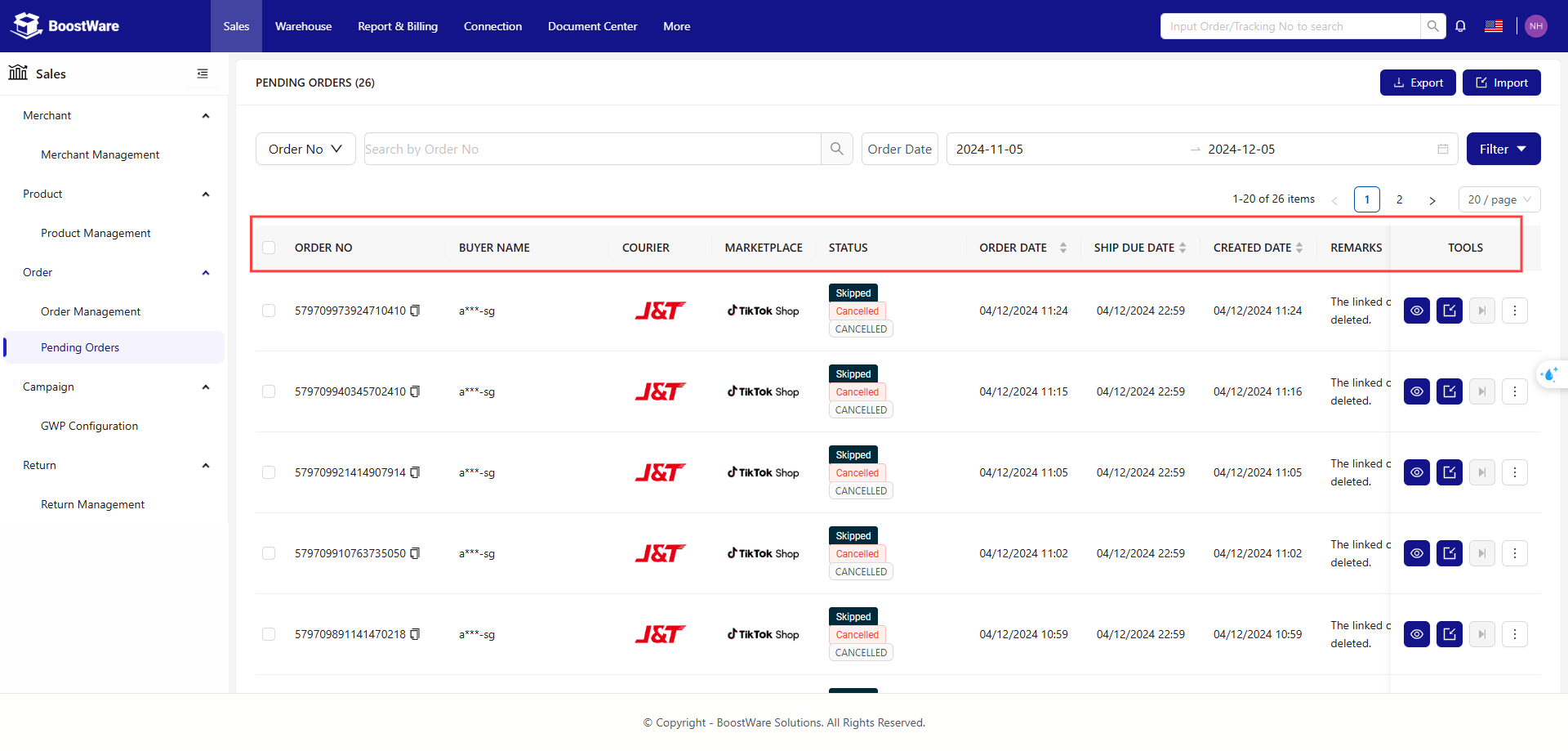
At the top right, you can filter the list of pending orders using various options:
- Merchant
- Status
- Marketplace
- Courier
- v.v.
.png)
Table
The table displays all orders that are currently pending your action.
.png)
For each pending order, you can take one of two main actions:
- Import: Move the order to the Orders stage.
- Skip: Exclude the order from processing by BoostWare Fulfillment.
Import
You can import orders either individually or in bulk.
- Individually: Click the import button next to the specific order you want to import.
.png)
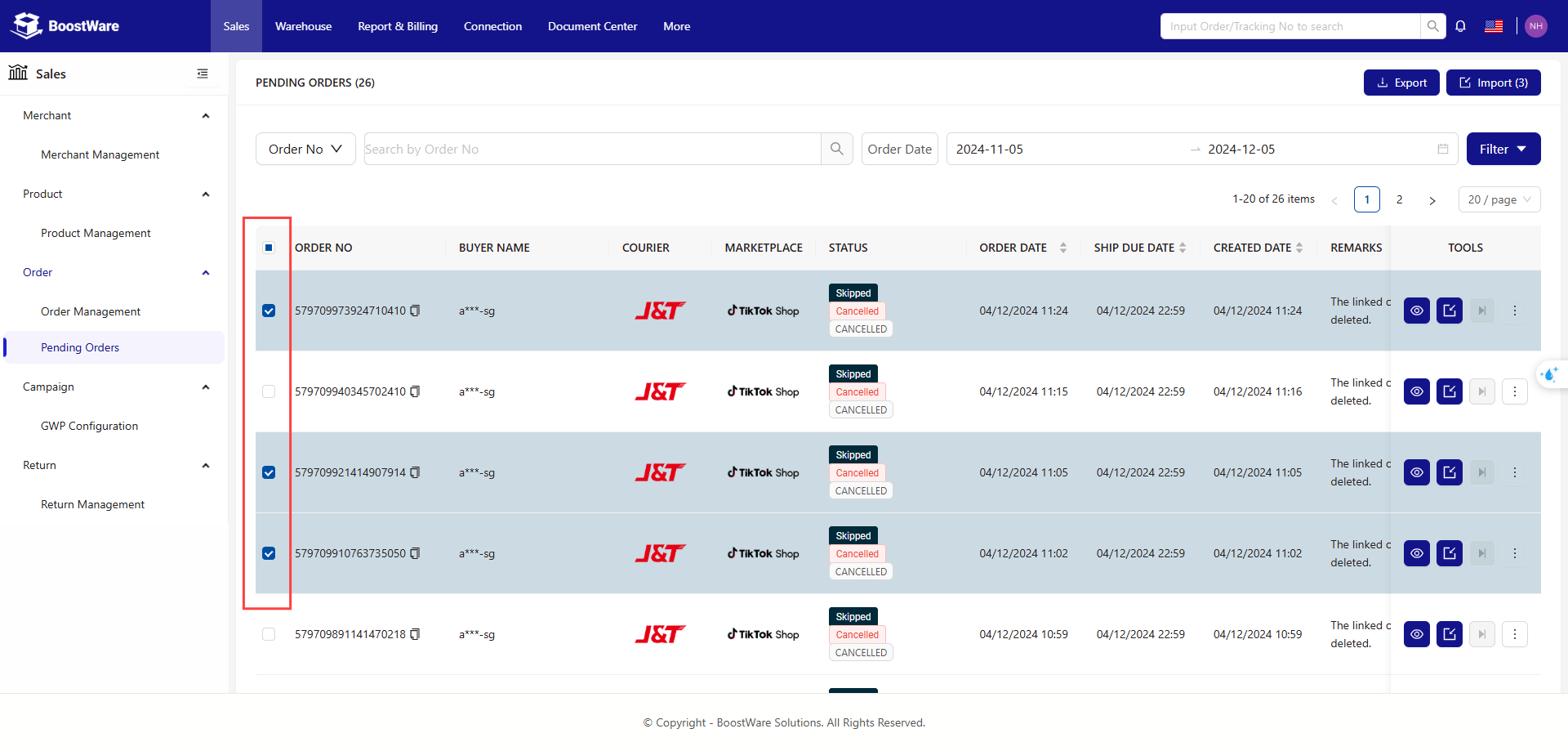
- Bulk: Use the Import button dropdown at the top right of the table to select the marketplace and import all orders from that marketplace.
Steps:
Step 1: Tick the checkbox for the Order No you want to import into the system.
Step 2: Then click the Import button at the top right. After that, these Order Nos will be automatically pushed to the Orders screen.
Skip
Click the skip button next to the order you wish to skip.
.png)
Statuses
Your orders may be in one of four statuses:
- Pending: Awaiting your decision on how to handle the order.
- Error: An issue occurred while importing the order; please contact your account manager for assistance.
- Skipped: You have previously chosen to skip this order.
- Imported: The order has already been imported to the Orders stage for processing.
.png)